
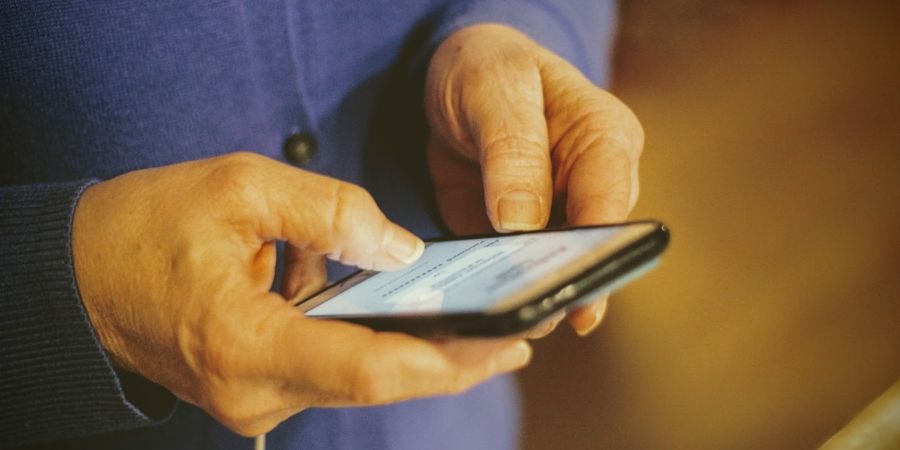
78% of U.S. adults aged 65 and above own a smartphone, so the “right phone” question has no one-size-fits-all answer anymore.
The goal stays simple: pick a device and a setup that make calls easy, keep scams out, and help family reach them fast, without turning every day into a tech support episode.
If you’re looking for a straightforward, senior-friendly option, consider Jitterbug phones. Then, follow the steps below to ensure the setup suits the person, not just the product page.
Start with Daily Needs, Not Specs
Begin with three “real life” questions: Who do they call most, where do they use the phone, and what frustrates them today? If they mainly call family and doctors, prioritize clear audio and simple contacts.
If they travel between home, appointments, and errands, prioritize strong coverage and a battery that lasts all day. If they forget passwords, prioritize unlock methods that feel natural (PIN, fingerprint, or face unlock).
Also write down any must-haves: hearing aids, low vision, limited hand strength, tremor, or memory challenges. Those details matter more than camera megapixels.
Pick the Right Phone Type
Most seniors fit into one of three lanes:
- Classic keypad phone (flip or bar): Best for people who want calls only, big physical buttons, and a simple screen. This option cuts “accidental tap chaos” to near zero.
- Simple smartphone: Best for people who want calls plus photos, video calls, maps, and messaging without a steep learning curve. Look for a clean interface, solid speaker volume, and long software support.
- Standard smartphone with accessibility turned on: Best for people who already use an iPhone or Android, or who have family that can help. You can make a modern phone feel “senior-simple” with bigger text, fewer apps on the home screen, and louder audio.
Choose the lane that matches your habits. If they never used email, do not force email just because the phone can do it.
Make the Screen and Audio Work Every Time
For vision: increase text size, enable bold text, and raise contrast. Keep the home screen uncluttered: one page, big icons, and only the apps they use. Turn on an easy-to-find flashlight shortcut if they walk at night or read pill labels.
For hearing: test call volume in a noisy room, not only at the kitchen table. If they use hearing aids, check hearing-aid compatibility ratings. The FCC treats a handset as hearing aid-compatible when it meets at least M3 (acoustic coupling) and T3 (telecoil coupling).
For hands: add a grippy case, avoid tiny side buttons, and use a screen protector that still supports touch sensitivity. If tremor causes wrong taps, use larger icons and fewer apps.
Build a “No-Panic” Calling And Messaging Setup
A good setup reduces decision points. Do these basics:
- Create favorites: Put 5–10 key people at the top (family, neighbor, doctor, pharmacy).
- Add photos to contacts: Faces beat names when stress hits.
- Set up voicemail clearly: Record a short greeting and write the voicemail PIN on a card that stays in a safe spot.
- Choose one messaging path: Either SMS, WhatsApp, or iMessage, pick one and make everyone use it for that person.
- Enable caller ID announcements (when the phone supports it): “Call from Anna” helps when they cannot read the screen fast.
Then define a family rule: if it’s urgent, call twice in a row. That avoids ignored “unknown” buzzes and reduces missed emergencies.
Add Safety Features
Safety features help most when they feel invisible. Start small:
- Emergency contacts and SOS: Add emergency contacts and show them one simple action to trigger help. Keep the explanation short and repeat it later.
- Location sharing for family: Use it only with consent, and keep it focused on safety (rides, medical visits, travel). A “family trust” setup beats a “spy movie” setup.
- Silence unknown callers: Turn on spam call filtering if the phone and carrier support it, and explain one rule: “If you do not know the number, let it go to voicemail.” Many scams rely on live conversation.
Finally, keep medical info accessible: add an emergency note (allergies, meds, conditions) on the lock screen feature the phone provides, so first responders can see it even when the phone stays locked.
8 iPhone Emergency Features Every Senior Should Know
Choose a Plan That Matches Real Use
Many seniors overpay for data they never use, then run out of minutes when they do need them (yes, that still happens). Match the plan to habits:
- Home Wi-Fi user: They can use a smaller data plan, since Wi-Fi handles video calls and updates.
- On-the-go user: They need more data and stronger coverage in the places they visit most.
- Talk-first user: Prioritize reliable voice service and customer support.
Before you commit, test coverage where they actually live: inside the house, near the window, and in the yard.
Do A Setup That Actually Sticks
A phone can look perfect on day one and fail on day five. Use a simple “stickiness” routine:
- Set up the phone together and keep the home screen minimal.
- Write a tiny cheat sheet (paper) with: how to answer, how to call favorites, how to charge, and what to do if it freezes.
- Practice three actions only: answer a call, call a favorite, and read a text.
- Schedule a 10-minute check-in after two days and after one week: fix confusion early.
Also, standardize chargers. Put one charger in the main room and one by the bed, and label them.
Read Also: When a Legal Fight Becomes a Waiting Game